Introduction
Manual file transfers between CNC machines, servers, and shop-floor systems eat time and introduce errors your production schedule can't afford. A machinist running an outdated program because the latest revision didn't make it across the network is a scrap part waiting to happen. NIST research confirms that manual file handling methods are "ineffective and nonproductive" — and that importing design files directly eliminates the need to redraw parts and "possibly introduce errors."
Batch scripting for FTP automation seems straightforward — until it isn't. Results vary widely depending on script structure, credential handling, and Windows FTP command syntax. Common failure points include:
- Scripts that run fine interactively but fail silently under Task Scheduler
- ASCII transfer mode that works for text but corrupts binary CNC data
- Credentials stored in plain-text script files on shared shop-floor PCs
This guide walks through the exact steps to build, configure, and run an FTP batch script reliably — and flags where batch scripting falls short so you can choose the right tool for your shop.
Key Takeaways
- Windows includes a built-in FTP client that runs command scripts automatically using the
-s:flag - A batch file generates and executes FTP scripts on the fly for repeatable transfers
- Storing plaintext passwords in script files violates NIST security controls; restrict file permissions and access immediately
- Task Scheduler triggers batch scripts on any schedule for unattended operation
- High-volume shop-floor file distribution demands more than batch scripts — dedicated DNC software handles error recovery, logging, and machine handshaking that DIY scripts skip
Step-by-Step: How to Automate FTP File Transfers with a Batch Script
Step 1: Write the FTP Command Script File
The FTP script is a plain-text file (e.g., ftpscript.txt) containing the sequence of FTP commands the client executes. Each command appears on its own line, executed in order.
Core FTP commands used in a typical upload or download script:
- open [IP or hostname] — Connects to the FTP server
- user [username] — Sends the username
- [password on next line] — Sends the password (must immediately follow
userwith no blank lines) - cd [remote path] — Changes remote working directory
- lcd [local path] — Changes local working directory
- binary — Sets transfer mode to binary (critical for non-text files)
- put [filename] — Uploads a single file
- get [filename] — Downloads a single file
- mput [*.ext] — Uploads multiple files matching a wildcard pattern
- mget [*.ext] — Downloads multiple files matching a wildcard pattern
- bye — Closes the session
For multiple files, use mput and mget with wildcards (e.g., mget *.nc). Add the -i flag to the FTP command or include prompt n in the script to suppress interactive prompting during bulk transfers.
Step 2: Run the FTP Script from the Command Prompt
The syntax ftp -s:ftpscript.txt executes all commands in the script file automatically. Use an absolute path if the script isn't in the current directory: ftp -s:C:\\path\\to\\ftpscript.txt.
Key command-line flags:
-s:filename— Specifies the script file to execute-n— Suppresses auto-login (required when credentials are inside the script)-i— Disables interactive prompting for multi-file transfers-v— Suppresses server response output (cleaner logs)
Step 3: Wrap the FTP Script Inside a Batch File (.bat)
A .bat file can dynamically generate the FTP script at runtime using echo commands and redirection, then invoke ftp -s: against the generated file—and optionally delete it afterward to limit credential exposure.
Example batch file:
@echo off
echo open 192.168.1.100 > ftpscript.txt
echo username >> ftpscript.txt
echo password123 >> ftpscript.txt
echo binary >> ftpscript.txt
echo cd /remote/directory >> ftpscript.txt
echo lcd C:\local\directory >> ftpscript.txt
echo mget *.nc >> ftpscript.txt
echo bye >> ftpscript.txt

ftp -s:ftpscript.txt -i

del ftpscript.txt
The batch file can accept command-line arguments (%1, %2) so the same script works for different filenames or directories each time it runs, making it reusable across multiple transfer jobs.
Step 4: Schedule the Batch File for Unattended Execution
Windows Task Scheduler handles the timing so the transfer runs automatically without any manual intervention. Add the .bat file to it with these steps:
- Open Task Scheduler
- Select Create Basic Task
- Set the trigger (daily, hourly, on system events)
- Set the action to Start a program and browse to your
.batfile - Set the Start in directory to the folder containing your batch file
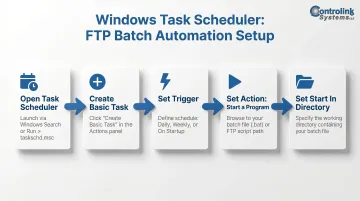
This makes the workflow truly unattended: the task fires, the batch file generates the FTP script, the transfer runs, and the batch file deletes the script.
What You Need Before Writing Your FTP Batch Script
Confirm network access and FTP server details are in hand before scripting:
- FTP server's IP address or hostname
- Port number (default 21)
- Valid credentials (username and password)
- Exact remote directory paths for upload/download targets
- Local directory paths where files will be stored or retrieved
Equipment and OS Requirements
Windows 10, 11, and Windows Server editions include the FTP client by default. Verify that TCP/IP is installed on your network adapter—the ftp command requires it (it's installed by default on all modern Windows systems).
Skill and Security Readiness
Operators need basic command prompt familiarity before writing these scripts. The bigger concern is security: credentials written into script files are stored in plain text and readable by anyone with file system access.
NIST 800-53 Rev. 5 control IA-5(7) explicitly prohibits "unencrypted static authenticators" in static storage. Only proceed if the FTP server sits on an isolated internal network — behind a firewall and inaccessible from public internet traffic.
Key Parameters and Variables That Affect Your FTP Batch Script
Reliability and behavior depend on several controllable variables. Getting these right is what turns a one-time script into something you can schedule and forget.
Transfer Mode (ASCII vs. Binary):
FTP defaults to ASCII transfer mode, which is appropriate for plain-text files but corrupts binary files (executables, certain proprietary CNC program formats). Microsoft documentation confirms ASCII is the default and recommends binary mode for executable files. Always explicitly set binary mode in the script when transferring non-text files.
The -i Flag and Interactive Prompting:
Without the -i flag (or prompt n command in the script), mget and mput pause for confirmation on every file—breaking unattended execution entirely. Always disable interactive prompting when batch-transferring multiple files.
Credential Handling and Script Security:
Hard-coded credentials in a static script file violate NIST 800-53 IA-5(7). The safer pattern is generating the script dynamically in the batch file and deleting it immediately after transfer. This minimizes the time the password sits on disk in a readable file.
Error Logging and Exit Code Checking:
FTP output can be redirected to a log file for review after each run:
ftp -s:script.txt >> transfer.log 2>&1
The batch file can then check %ERRORLEVEL% after the FTP command to detect failures and conditionally print an error message or trigger a follow-up action.
File Path Handling with Spaces:
File names or directory paths containing spaces must be enclosed in quotes. Failing to do so is one of the most common causes of silent transfer failures where the command runs but the wrong file (or no file) is moved.
Common Mistakes When Automating FTP with Batch Scripts
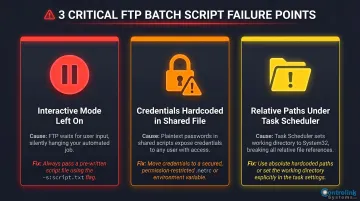
These three mistakes account for the majority of failed unattended FTP scripts — each one is easy to overlook and harder to diagnose after the fact.
- Interactive mode left on: Omitting the
-iflag orprompt ncausesmget/mputto hang waiting for user input. The script stalls silently, and the scheduled task either times out or sits indefinitely with no error message. - Credentials hardcoded in a shared script file: A static
.txtfile on a shared shop-floor workstation exposes usernames and passwords to anyone with read access. Use the generate-and-delete pattern, or at minimum restrict file permissions on the script directory. - Relative paths used when scheduling: A script that runs fine interactively can fail under Task Scheduler because the working directory context is different. Always use absolute paths for both the script file and any local directories it references.
Troubleshooting FTP Batch Script Issues
Even well-written scripts fail sometimes. Network conditions, server configuration, and Windows environment differences all introduce failure points. When something goes wrong, check your log file first — it usually points directly to the problem.
Script Runs But No Files Are Transferred
The most common culprits are a transfer mode mismatch (ASCII mode corrupts binary files silently), an incorrect remote path, or interactive prompting blocking execution. Check:
- Verify the remote directory path by running an interactive FTP session manually
- Confirm
binarymode is set in the script - Confirm
-iflag is used orprompt nis in the script
Connection Refused or Timeout at the "open" Command
This usually points to an incorrect IP/hostname, a firewall blocking port 21, or the FTP service not running on the target server. Check:
- Test connectivity by pinging the server
- Attempt a manual
ftp [hostname]session from the command prompt - Confirm port 21 (or the configured port) is open between the source machine and the server
Login Failure (530 or "Not logged in" Error)
A 530 error means the server rejected the login. RFC 959 defines this as "Not logged in" — typically caused by wrong credentials, wrong order in the script, or a server-specific login format requirement. Check:
- Verify username and password by logging in manually
- Ensure the script lists the password on the line immediately after the username with no blank lines between
- Confirm whether the server requires
USER [username]format vs. just the username alone
Batch File Runs Successfully Interactively But Fails Under Task Scheduler
Task Scheduler runs with a different working directory than an interactive command prompt session — relative file paths that work manually will fail here. Check:
- Change all file references in the batch file to absolute paths
- Verify the Task Scheduler task is running under a user account with network access and file system permissions to the script and transfer directories
- Set the "Start in" field in Task Scheduler to the directory containing your batch file
When Batch Scripts Aren't Enough: Alternatives for Shop-Floor File Transfer
FTP batch scripts work for simple, infrequent transfers on a single machine, but become a liability in shop-floor environments with many CNC machines, frequent program updates, and accountability requirements.
Alternative: WinSCP Scripting Interface
Choose WinSCP when SFTP or FTPS (secure protocols) are required instead of plain FTP, or when you need more sophisticated script logic — conditional transfers, synchronization, XML logging — without writing everything from scratch.
WinSCP is a free SFTP, FTPS, and SCP client for Windows. It supports:
- Script execution via the
/scriptswitch synchronizeandkeepuptodatecommands for directory mirroring- XML logging for analyzing scripted operations
- Meaningful exit codes for batch-file error handling
That said, WinSCP is still script-based — it requires setup, ongoing maintenance, and scripting knowledge, plus a WinSCP installation on every machine involved.
Alternative: Purpose-Built DNC Software (such as Controlink's DNC Solutions)
For manufacturing environments where NC programs, tool offsets, and engineering files need to be distributed, tracked, and version-controlled across multiple machines, purpose-built DNC software is worth the switch.
Controlink's DNC software is built specifically for this workflow, with an interface that eliminates the need to write, maintain, or troubleshoot scripts entirely. Machinists can request files directly from their machine tool controls using simple keywords, and the software automatically serves the correct file back — no manual intervention required.
The system supports RS-232 serial communications (critical for legacy CNC machines), wireless Ethernet connectivity, and simultaneous communication with dozens of machines.
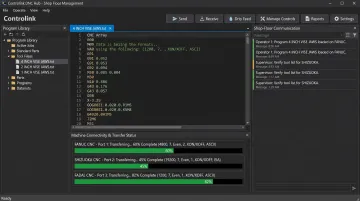
The upfront investment is higher than free batch scripts, but it eliminates the risks of credential exposure, silent transfer failures, and machinists running outdated programs. Controlink's solutions have been deployed in shops ranging from small operations with a handful of machines to large facilities managing 60+ CNC controls simultaneously.
Frequently Asked Questions
Can I schedule an FTP batch script to run automatically in Windows?
Yes. Windows Task Scheduler can trigger a .bat file on any defined schedule—daily, hourly, or on system events—making FTP transfers fully unattended once the task is configured.
How do I transfer multiple files at once with an FTP batch script?
The mput command uploads multiple files and mget downloads them, supporting wildcards (e.g., mget *.nc). The -i flag or prompt n command must be included to prevent the script from pausing for confirmation on each file.
Is it safe to store FTP login credentials inside a batch script?
No. Storing credentials in a static script file is a security risk because the file stores them in plain text. The safer pattern is to generate the script dynamically in the batch file and delete it immediately after the transfer completes.
What is the difference between an FTP script file and an FTP batch file?
An FTP script file (.txt) contains FTP-specific commands (open, put, get, bye) and is passed to the Windows FTP client using ftp -s:. A batch file (.bat) is a Windows shell script that generates, executes, and cleans up FTP script files within a broader automated workflow.
What should I do if my FTP batch script connects but fails to transfer files?
Start with these three checks:
- Missing
-iflag: Interactive prompting may be blocking the transfer silently - Remote directory path: Run a manual FTP session to confirm the path is correct
- Transfer mode: Verify
binaryvs. ASCII mode matches the file type being moved
Can FTP batch scripts detect and report errors if a transfer fails?
Yes. The batch file can redirect FTP output to a log file and check %ERRORLEVEL% after the FTP command to detect failures. From there, it can echo an error message or trigger an alert action conditionally.