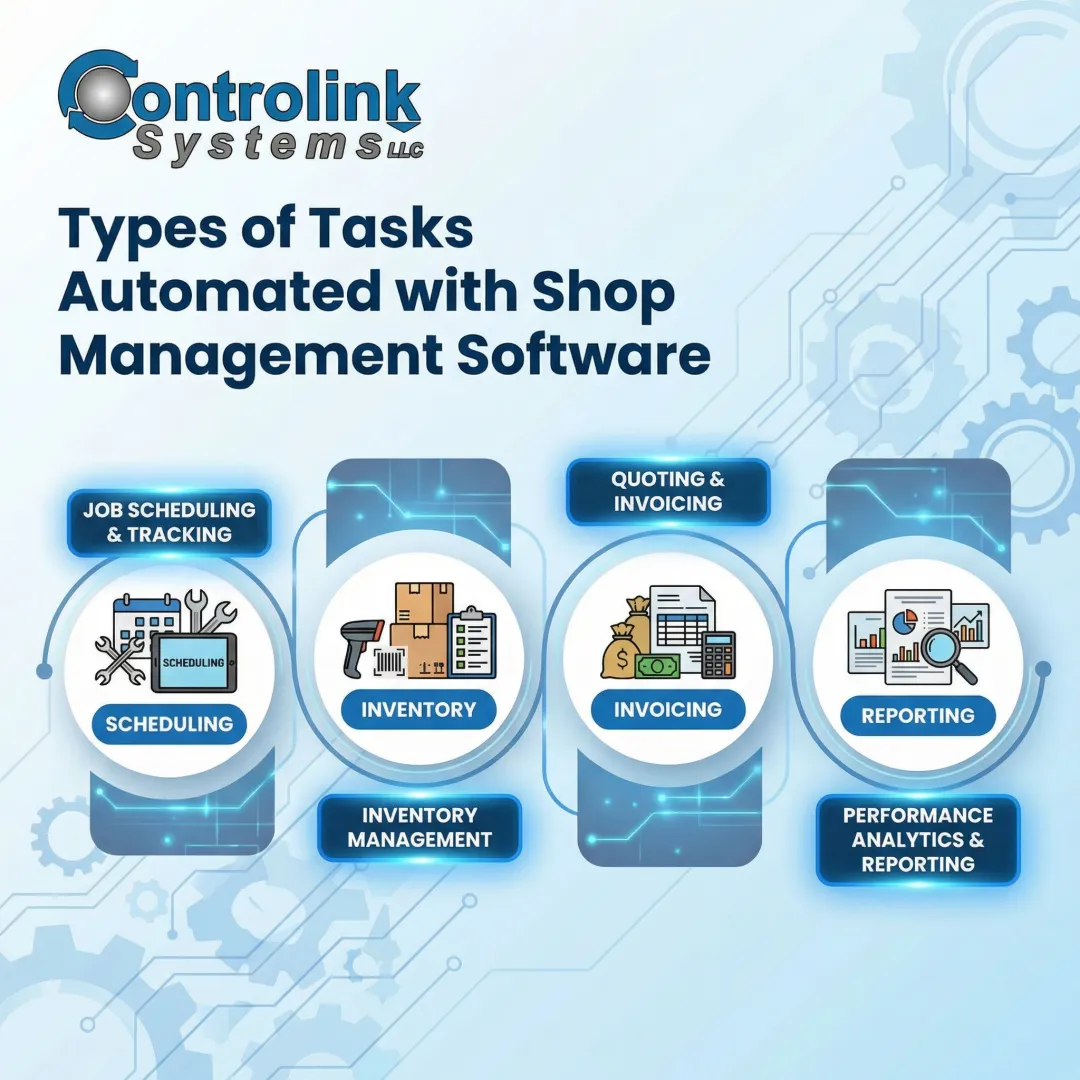

Implementing workflow automation with custom software sounds technical, and outcomes vary dramatically based on how well the software maps to your actual shop-floor processes, whether integration protocols match your existing hardware, and how prepared operators are to adopt the new system.
This guide covers the exact steps to implement workflow automation using custom software in a manufacturing environment—what's required upfront, the key variables that determine success, and the mistakes that derail most implementations.
TL;DR
- Workflow automation eliminates manual handoffs by connecting machines, databases, and systems into unified process flows
- Success starts with mapping current workflows and identifying the right integration points: PLCs, CNCs, SQL databases, and communication protocols
- Off-the-shelf tools rarely support industrial protocols; custom software handles your specific process logic and machine communication needs
- Most implementation failures trace back to skipping the workflow audit or underestimating operator training
- Start with one high-impact workflow (DNC file distribution or test data logging) before scaling across the shop
How to Implement Workflow Automation With Custom Software
Step 1: Audit and Map Your Existing Workflows
Document every manual step in your current process. Identify which tasks are repetitive, time-consuming, or error-prone:
- Manually transferring CNC programs via USB or memory card
- Recording inspection data by hand in spreadsheets
- Walking files across the shop floor between engineering and production
- Manually typing program numbers at machine controls
Currently, 54% of small- and medium-sized plants rely on pen, paper, and spreadsheets as their default manufacturing execution system. Separately, 70% of manufacturers still collect operational data manually, introducing latency and transcription errors that make real-time OEE tracking impossible.
Identify the handoff points between machines, operators, and systems. These are the highest-value targets for automation and the most common sources of errors and delays.
Prioritize by impact: focus first on processes where automation will measurably reduce scrap, downtime, or machine idle time.
Step 2: Define Integration Points and Communication Requirements
List all hardware and software systems that need to connect:
- CNC machines and controllers
- PLCs and motion controllers
- SQL databases
- Existing ERP or MES systems
Determine which communication protocols are required for each connection point. 71% of industrial organizations cite interoperability as a significant barrier to automation projects.
Common industrial protocols include:
| Protocol | Typical Use Case | Key Characteristic |
|---|---|---|
| Modbus (RTU/TCP) | Simple sensor/PLC polling | Highly prevalent but lacks real-time determinism |
| Serial/RS-232 | Legacy CNC DNC file transfer | Limited to slow baud rates (typically 4,800 baud) |
| PROFINET | High-speed PLC communication | Industrial Ethernet with real-time capabilities |
| EtherCAT | Demanding motion control | Sub-millisecond deterministic performance |
| CAN/CANopen | Embedded networks, motor control | Robust for harsh industrial environments |

Verify protocol compatibility between your custom software and each endpoint before development begins.
Protocol mismatches discovered late in the project cause costly rework and can isolate entire machine cells from the automated workflow.
Step 3: Configure and Deploy Custom Software Modules
Work with your software developer to build or configure modules that handle each integration point. This includes:
- HMI interfaces for operators
- Data logging routines
- Automated triggers (e.g., auto-send the correct CNC program when a job is loaded)
The software must handle network interruptions, machine faults, and power cycles without data loss or process failure. The average cost of unplanned downtime has reached $260,000 per hour—reliability engineering in the software layer is non-negotiable.
Set up role-based access and version control so machinists always receive the latest engineering-approved files. This eliminates a common source of scrap from outdated programs running on the floor.
Step 4: Test, Validate, and Train Operators
Run the automated workflow in parallel with the existing manual process before going live. Compare outputs to verify data accuracy and catch edge cases the initial build may have missed.
Conduct operator training on the HMI interface. Well-designed custom software typically cuts training time compared to generic tools, but operators still need to understand triggers, alerts, and exception handling.
Document the go-live checklist:
- Confirm all communication links are active
- Verify data is logging correctly to databases
- Test automated triggers under production conditions
- Ensure rollback procedures are in place if a critical issue surfaces post-deployment

What You Need Before You Start
Equipment and System Requirements
Confirm that your CNC machines, PLCs, and controllers have accessible communication ports and support at least one standard protocol your custom software can interface with. Older equipment may require protocol converters or hardware upgrades.
Legacy CNC machines with RS-232 serial communications operate reliably at a maximum of 4,800 baud (approximately 480 characters per second). DNC software systems solve this bottleneck by allowing shops to request files remotely from the machine tool control unit and send files back to a centralized server for automatic storage.
Skill and Integration Readiness
Assess whether your team has the internal expertise to support the integration or whether you need an engineering services partner experienced in shop-floor automation. Controlink Systems LLC, for example, builds custom software that links CNC/DNC systems, PLC hardware, SQL databases, and process monitoring tools into a single automated workflow — reducing the need to piece together solutions from multiple vendors.
Before committing to a partner or internal build, confirm your team can address these readiness factors:
- Engineering files and part programs are organized and version-controlled before automation begins
- Communication protocols are confirmed compatible across all machines and controllers
- Internal expertise is sufficient to maintain the integration, or an external partner is identified
- Process ownership is assigned — someone needs to manage the automated workflow once it's live
Automating a disorganized file structure doesn't fix the problem. It only accelerates the distribution of bad data.
Key Parameters That Affect Implementation Results
Outcomes depend heavily on a set of controllable variables—understanding them before configuration locks in your design decisions.
Protocol Compatibility
Mismatched communication protocols between custom software and shop-floor hardware are the most common cause of failed automation projects. A single unsupported protocol can isolate an entire machine cell from the automated workflow.
Correct protocol selection ensures real-time, reliable data exchange between controllers and software. The result: accurate monitoring, file delivery, and process control without manual intervention.
HMI Design and Usability
A poorly designed operator interface increases training time, introduces input errors, and leads operators to bypass automation steps entirely—negating the productivity gains the software was built to deliver.
The numbers back this up:
- ISA-101 compliant HMIs let operators detect abnormal situations 5x faster and cut task completion time by 41%
- Operators spend 40-60% of training time navigating cluttered screens rather than learning the actual process
- Poor cognitive ergonomics create 2-10 second micro-delays per action—compounding into 6-20 minutes of lost productivity per shift

File Version Control and Data Integrity
In CNC environments, running a superseded part program is one of the most common causes of scrap. Custom software must enforce version control so only the latest engineering-approved file reaches the machine.
Automated DNC file delivery with built-in version checks eliminates the manual lookup step that operators frequently skip under production pressure. Scrap and rework cost the average manufacturer up to 2.2% of annual revenue—a figure that version control directly shrinks.
System Reliability and Uptime Requirements
Custom shop-floor software supports critical manufacturing and test systems that must run continuously across shifts. Any unplanned downtime in the automation layer cascades into machine idle time and missed production targets.
User error accounts for 23% of all unplanned downtime in manufacturing—more than double the 9% average seen in other industries. Custom workflow automation that enforces SOPs and eliminates manual file transfers directly closes that gap.
Common Mistakes When Implementing Workflow Automation With Custom Software
Most automation failures trace back to predictable planning errors — not the software itself. Avoiding these three mistakes before deployment will save significant rework time and cost.
- Skipping the workflow audit before configuration: Automation built on top of a poorly understood process replicates existing inefficiencies at machine speed rather than fixing them. Map every step before touching the software.
- Selecting communication protocols based on cost alone: This creates integration bottlenecks requiring expensive workarounds later. Protocol compatibility with your existing machines must be the primary selection criterion — not the lowest price tag.
- Underinvesting in operator training and HMI usability testing: Even technically sound automation fails if operators can't trust or interpret the system. Faced with confusing interfaces or alarm floods, operators frequently resort to dangerous workarounds — including manually bypassing safety barrier functions.

When Custom Workflow Automation Makes Sense (vs. Off-the-Shelf Tools)
Generic workflow automation platforms (Zapier, Make, Power Automate) are designed for business-process tasks like email triggers and form submissions. They lack native support for industrial protocols (Modbus, PROFINET, CAN, EtherCAT) and cannot directly interface with CNC controllers, PLCs, or process monitoring hardware.
Zapier relies on polling triggers that check for data at 1-to-15-minute intervals and enforces a strict ~30-second execution limit for integration steps. Microsoft Power Automate limits synchronous requests to a 120-second timeout.
Those asynchronous delays and execution timeouts are fundamentally unsuitable for direct industrial control.
Custom software is the right choice when your workflow involves any of the following:
- Machine-to-machine communication requiring sub-second response times
- Real-time process data from PLCs or motion controllers
- High-precision part program delivery with version control
- Test and measurement data that must integrate with SQL databases and existing shop-floor systems
When scrap rates, machine utilization, or downtime costs are being tracked, the ROI on custom software is directly measurable. Shop-floor automation software delivers a 15%–20% increase in machine utilization. In one documented case, replacing manual USB transfers with a centralized DNC system cut programming load time from 15 minutes to 20 seconds — with full ROI payback in 2 to 3 months.

Conclusion
Implementing workflow automation with custom software in a manufacturing environment works best when the process audit is thorough, integration points are clearly defined, and communication protocols are correctly matched to existing hardware.
Most failed implementations trace back to skipping the mapping phase, underestimating protocol complexity, or deploying a generic tool that lacks the industrial integration capabilities the shop actually needs. Controlink Systems LLC has been building these kinds of shop-floor integrations since 1998 — connecting CNC machines, PLCs, databases, and monitoring systems into workflows that run without constant operator attention.
Contact Controlink Systems at (800) 838-3479 or support@controlinksystems.com to discuss your shop-floor automation requirements.
Frequently Asked Questions
How to implement workflow automation?
Implementation starts with auditing existing workflows to identify manual, repetitive steps. From there, select integration tools or custom software that connects the systems involved using appropriate industrial protocols. Finally, deploy and test the automated process in parallel with existing workflows before going live.
How do software developers use workflow automation?
In manufacturing contexts, developers build automation by defining triggers (such as a job load event on a CNC machine) and connecting data sources via protocols like Modbus or Serial. The resulting logic executes actions automatically—delivering the correct part program or logging process data to a database.
What are examples of a workflow automation tool?
Generic business tools include Zapier and Power Automate for email and form automation. Manufacturing facilities typically require custom software capable of interfacing with PLCs, CNC controllers, and process monitoring hardware using industrial protocols like PROFINET, EtherCAT, and Modbus.
What are the 4 stages of process automation?
The four stages are:
- Identify and document the target process
- Design the automated logic and integration architecture
- Deploy and configure the software
- Monitor, validate, and continuously improve based on performance data
Can workflow automation work with legacy CNC machines?
Yes, legacy CNC machines can be integrated using Serial/RS-232 or other legacy communication protocols. Custom software uses protocol converters or adapters to bring older equipment into an automated workflow—no machine replacement required—preserving centralized file management and automated program delivery.